Google Meet PiP Mode: Unlock Your How-To Guide Now!
- Eric Savina

- Mar 4, 2024
- 7 min read
Updated: Oct 1, 2025
Hey everyone, ever feel like you're juggling a million things at once during online meetings? Checking notes, responding to emails, all while trying to keep an eye on the call? Well, Google Meet has a hidden gem called Picture-in-Picture (PiP) mode that can be your new best friend in these situations.
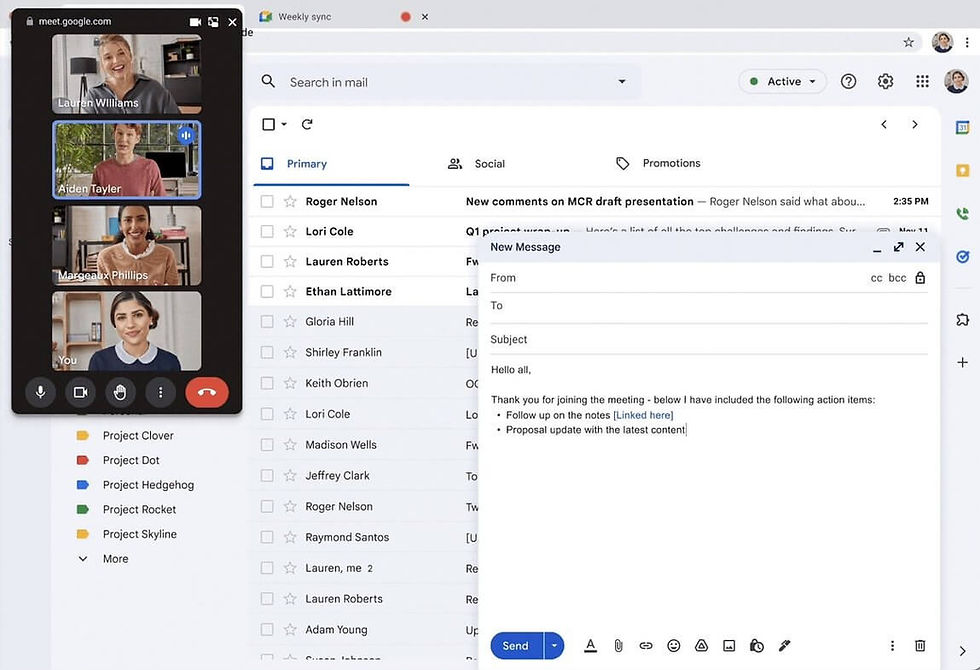
Imagine having a tiny meeting window pop up on your screen, like a mini TV, that shows you the video feed even when you switch to other tabs or apps. Pretty cool, right? This way, you can stay on top of the meeting visually, even if you need to jump to a document or answer a quick message.
No more frantic alt-tabbing or missing important non-verbal cues! PiP mode is a lifesaver for anyone who multitasks in meetings, whether you're a busy professional juggling tasks or a student referencing notes. It's super easy to use and stays on top of your screen without getting in the way. Plus, you can move it around to find the perfect spot that doesn't disrupt your workflow.
As the world of remote work keeps changing, PiP mode is a sign of things to come. It makes online meetings more flexible and adaptable, letting you stay connected and engaged without sacrificing your productivity. So, the next time you're in a virtual meeting and feeling overwhelmed, give PiP mode a try - it might just be the secret weapon you've been looking for!
Step-by-Step Guide to Enabling PiP Mode in Google Meet
Enabling Picture-in-Picture (PiP) mode on Google Meet can greatly enhance your multitasking abilities during a video conference. The process is straightforward and allows you to view your meeting in a small floating window over other applications. Let me walk you through how to activate PiP mode during your Google Meet sessions. Trust me, it's a game-changer!

Use a compatible browser: Ensure you're using a browser that supports PiP functionality, like Google Chrome, Microsoft Edge, or Opera. As of now, not all browsers support this feature natively.
Start or join a Google Meet session: Open your preferred browser, navigate to the Google Meet website, and initiate or join a meeting as you would normally do.
In your meeting, at the bottom, click More options (three dots).
Click Open picture-in-picture
Adjust the PiP window: Once PiP mode is activated, you can adjust the floating window's size and position on your screen by clicking and dragging the corners or the top of the window itself.
Return to full screen: To exit PiP mode and return to the full Google Meet interface, simply click the 'back to tab' icon on the floating window or close the PiP window directly.
By following these steps, you can seamlessly use PiP mode in Google Meet to keep up with your meeting while accessing other tasks on your computer.
Advantages of Using PiP Mode During Online Meetings
First off, PiP mode is like having superpowers for multitasking. Imagine being in a meeting while smoothly checking your emails, diving into documents, or even browsing for information without missing a beat. It's perfect for us busy bees. The best part? No more flipping back and forth between between windows. You're right there in the meeting, visually connected, which means better communication and understanding all around.
Then there's the magic it does for your screen space. If you're working with a more crowded monitor than a city bus, PiP mode is your ticket to clarity. It tucks your meeting into a neat little window that you can move around, so you're not losing sight of those important slides or missing the warmth of face-to-face interaction, even if it's through a screen.
And let's talk about workflow. With PiP, you can take notes, work on shared docs, and stay tuned into the meeting's visuals without skipping a beat. It's like having your cake and eating it too - staying productive without losing focus on the meeting.
For those of us always on the move, PiP mode on mobile devices is a lifesaver. Need to check a text or a quick notification? No problem. PiP mode keeps you in the loop without putting your life on hold.
In short, PiP mode on Google Meet isn't just a feature; it's our new best friend for online meetings. It's all about multitasking smarter, staying connected, and making the most of our time and screen space. Trust me, once you give it a try, you'll wonder how you ever managed without it.
Troubleshooting Common Issues with PiP on Google Meet
Have you ever found yourself scratching your head because Picture-in-Picture (PiP) mode on Google Meet isn't working as smoothly as you'd hoped? You're not alone. Sometimes, despite its awesome multitasking benefits, PiP mode can be a bit of a puzzle, with issues ranging from not kicking in when you need it most to not showing what you expect. But don't worry, I've been there, and I've got some tips to help you get back on track.
First things first, let's make sure your browser is on board with PiP. Google Chrome and most big-name browsers are usually good to go, but it's always smart to double-check you're up to date. And while you're at it, peek at your extensions to ensure they're not throwing a wrench in the works.
If PiP mode is being stubborn, here's my go-to checklist:
Restart the browser: Simple glitches can often be resolved by closing and reopening your web browser.
Clear cache and cookies: Accumulated data may cause functionality issues. Clearing the cache and cookies can resolve unexpected behavior.
Disable extensions: Browser extensions, especially those that manipulate video or media, may conflict with PiP mode. Try disabling them to identify a potential culprit.
Check browser permissions: Make sure your browser has the necessary permissions to allow PiP. This might involve settings related to media control or overlays.
Use a dedicated PiP extension: If inherent PiP support is unreliable, consider installing a browser extension specifically designed to facilitate PiP functionality.
Hardware acceleration: Some users may need to enable or disable hardware acceleration within their browser settings to improve PiP performance.
If you've tried everything and PiP mode still isn't playing nice, it might be time to tap into the collective wisdom of the internet. Checking out the help center or diving into forums for your browser or Google Meet can shine a light on solutions or at least confirm you're not alone in your struggles. The beauty of community troubleshooting is that you often stumble upon ingenious workarounds shared by folks who've been in your shoes.
How to start the Picture-in-Picture (PiP) mode in Google Meet
Tips and Tricks for an Enhanced PiP Experience on Google Meet
To get the most out of Picture-in-Picture (PiP) mode on Google Meet and turn your multitasking during meetings into a superpower, here are some insider tips that have transformed my own virtual meeting game. First up, make sure your browser is in the PiP-friendly club. Chrome's usually a safe bet, but if you're using another browser, a quick compatibility check can save you a headache later.
Now, let's talk about your digital workspace. That PiP window? It's your new best friend. You can move it around, resize it, and find the perfect spot on your screen where it's both out of the way and easy to see. I like to keep mine in the same corner so my eyes know exactly where to flick without missing a beat.
And for those of you who are regulars in larger meetings, there's a whole world of extensions and apps out there designed to amp up your PiP experience. Imagine being able to switch views between speakers or keep an eye on shared presentations without losing sight of the person talking. Game changer, right?
Lastly, a smooth PiP session relies on a steady internet connection. If your video starts to stutter or freeze, consider closing any non-essential tabs or apps hogging your bandwidth. It's all about giving Google Meet the space it needs to keep you in the loop without a hitch.
By weaving these strategies into your Google Meet routine, you'll not only boost your productivity but also make your online interactions more dynamic and engaging. Trust me, once you've mastered the art of PiP, you'll wonder how you ever managed without it.
Conclusion: Making the Most of PiP Mode on Google Meet
Bringing Picture-in-Picture (PiP) mode into your Google Meet sessions is like unlocking a new level of multitasking magic, perfectly blending convenience with efficiency. It's a shining example of how digital communication tools are evolving to meet the fast-paced demands of today's professionals and educators. By activating PiP mode, you open up a world where you can browse, draft documents, or enjoy a more spacious digital workspace, all while keeping a watchful eye on your meeting's flow.
Embracing PiP mode is all about tapping into its potential to boost your productivity. Whether you're soaking up knowledge in virtual training, brainstorming in team meetings, or leading webinars, PiP mode hands you the reins to manage your digital environment. Seeing meeting participants in a neat, resizable window not only keeps the human connection alive but also ensures you don't miss out on important non-verbal cues, even as you multitask.
Moreover, PiP can be a real game-changer in fighting screen fatigue. It encourages you to dynamically switch between tasks, keeping your mind engaged and fresh, especially during back-to-back sessions. Mastering a few tricks, like using keyboard shortcuts for a quick PiP toggle, customizing the window to your liking, and finding the perfect spot for it on your screen, can elevate your Google Meet experience.
Of course, the road to PiP mastery might have a few bumps, such as ensuring your browser is up for the task and troubleshooting any snags along the way. Keeping your browser and Google Meet app updated is key to a smooth PiP journey.
In essence, PiP mode is a testament to Google Meet's dedication to crafting a meeting platform that's as user-friendly as it is innovative. When leveraged to its fullest, PiP mode enriches the online meeting landscape, marrying flexibility with practicality, and making sure that, even across digital divides, the spirit of collaborative engagement thrives.


Khi dành thời gian theo dõi trải nghiệm trên nhiều nền tảng giải trí trực tuyến, link C168 khiến mình chú ý bởi cấu trúc điều hướng khá khoa học. Các chuyên mục như xổ số, casino trực tuyến, game bài và thể thao được phân nhóm rõ ràng nên việc quan sát nội dung không gặp nhiều khó khăn. Mình nhận thấy menu được bố trí hợp lý, góp phần tiết kiệm thời gian tìm kiếm và hỗ trợ ghi nhớ vị trí các khu vực sau nhiều lần sử dụng. Trong lúc trải nghiệm thử thể thao và xổ số, tốc độ phản hồi khá đều, thao tác chuyển đổi giữa các mục diễn ra mượt trên cả điện…
Been using prepaid card options for a while now. The main draw is budget control, nothing more. You load what you can afford and that is it. No surprises, no unexpected charges. Anonymity is a real factor too, not just a selling point. Transactions tend to go through immediately, which matters when timing is relevant. I checked https://paygoo-casino.no recently and the payment flow looked straightforward for Norwegian users specifically. No major friction that I noticed. Whether that holds long term is another question entirely. As always, verify things yourself before committing to any platform. Caution is standard practice here.
This is the kind of game that's easy to learn but difficult to master. eggy car has become one of my favorite quick breaks during work.
The Drive Mad free browser version is great when you only have a few spare minutes. No complicated menus—just start playing right away.
This was a very interesting and insightful read. I’m grateful for the valuable information you’ve shared here. You’ve raised some great points, and I completely agree with your views. Thanks for taking the time to share such helpful content. Lo By Lola